
How Do I - Upload Document - Computer Instructions
How it works: The Document Upload Portal
- Once you click on the task to supply documents, you will be directed to the Document Upload Portal.
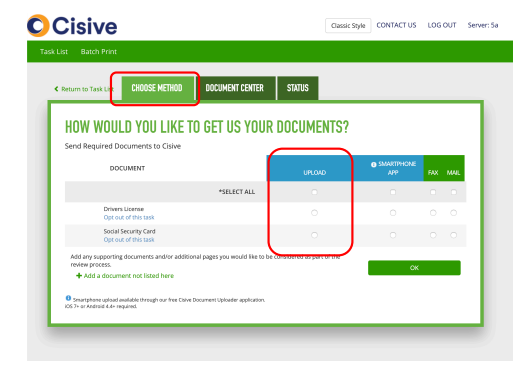
- In the Choose Method tab, you can select how each document will be supplied. For each document you would like to upload from a computer; select the option under the “Upload” column.
How it works : Uploading the Documents
- Once your method is selected, the Document Center tab of the portal will provide instructions to begin uploading the documents.

- To begin you will select the Add Page button (pictured above) and select the desired file from your computer:

- Once your document is located, select the open button to proceed.
- The selected document will be added to the Document Center tab. If your document requires multiple files, select the Add Page button. However, if you are complete you can finalize the upload by selecting the Upload button.

- Once uploaded, the file will be available for review in the Status Tab.

- You will have 10 minutes before Cisive begins working on the document. This gives you time to correct any mistakes.
- Once the 10 minutes are complete, the document upload is considered complete